Skip to content

Tony Perez

Tony Perez

  • Home
  • Posts
  • Tools
    • Palworld Progress Tracker
    • Currency Converter
    • Hex to RGB Converter
    • Weight Converter
    • Word & Character Count
  • Ultra Fast UK Web Hosting
  • Home
  • Posts
  • Tools
    • Palworld Progress Tracker
    • Currency Converter
    • Hex to RGB Converter
    • Weight Converter
    • Word & Character Count
  • Ultra Fast UK Web Hosting
Quick Reads
  • TikTok LIVE Studio keeps redownloading 700mb+
  • Fix ‘Purchase Call of Duty Black Ops 6 to have access to everything’ error on Game Pass
  • Complete List of iOS 26 Features & Changes
  • Bypass Radio Garden Block In The UK
  • How To Play OSRS In Fullscreen (RuneLite)
  • How To Export Your Amazon Orders To Excel
  • Automatically Post OSRS Notifications To Discord
  • How To Add Image Borders To Ivanti Knowledge Base Articles
  • How To Fix Fishing Bug in Palia
  • New Microsoft Teams Suddenly Crashing During Calls or Meetings
  • How To Find Full Network Path Of Mapped Drive
  • Quick Guide to Restore Corrupt World Save in Palworld
  • Palworld Progress Tracker – 300+ Completionist Achievements
  • How To Save Existing Table Style In Microsoft Word
  • CSM Option Greyed Out in BIOS
  • Orange DRAM Light, No Display
  • Fix Fire Stick Bluetooth Audio Delay (Alexa)
  • How To Pause Task Manager
  • OW2 Fix: Health Bars Disappeared While Healing
  • Outlook Automatically Creates Teams Meeting When Inviting Attendees
Home>Guide>Windows 10>Using Reliability Monitor To Quickly Diagnose
Windows 10

Using Reliability Monitor To Quickly Diagnose

Tony
June 8, 2022

A lot of time can be spent searching through Event Viewer to find out what caused a recent crash or other problem – I’ve probably spent a good chunk of my life doing so. However, if you want to find out what crashed or caused a problem at a glance, you can use Windows’s built-in ‘Reliability Monitor’ to do so.

Simply search for ‘reliability’ in the start menu and you will see the following:
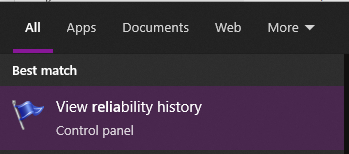
Windows 10 start menu showing search for 'View reliability history' to open Reliability Monitor

Open this up and it will show you a graph with a timeline and any notable events (Critical events, warnings and informational events), similar to Event Viewer.

Reliability Monitor breakdown

From here you can click on the different days where the problems occurred and then click ‘View technical details’ to view a more detailed description on what happened, much like Event Viewer. Here’s what I see when I click ‘View technical details’ on the explorer.exe crash:
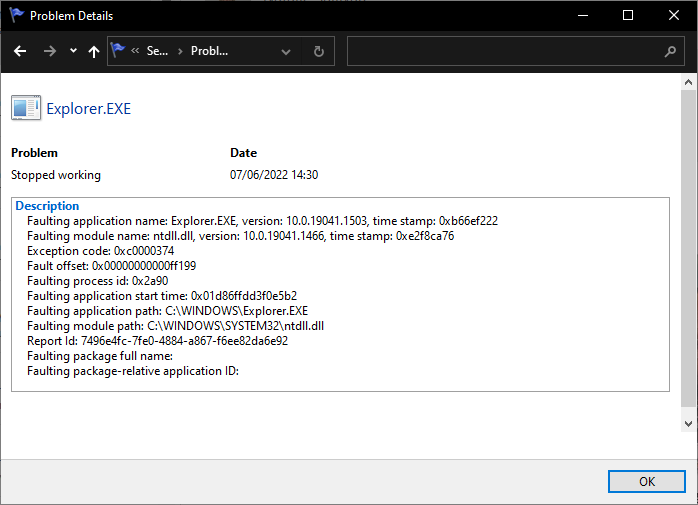
Detailed view of reliability monitor process (explorer.exe)

So if you are looking for a quick way to find out what problems have occurred or just to see what is regularly crashing, use Reliability Monitor. You can then use this information to help you use Event Viewer to investigate further.

Related Articles

Windows 10

Disable Windows Startup Sound

Windows 10

How To Open Task Manager

Windows 10

Disable Windows 10 Spyware

Change Windows Time Server Synchronisation Interval Guide GuideWindows 10

Change Windows Time Server Synchronisation Interval

Windows 10

Ultimate Windows 10 Setup & Personalisation Guide

Latest Posts

  • TikTok LIVE Studio keeps redownloading 700mb+
  • Fix ‘Purchase Call of Duty Black Ops 6 to have access to everything’ error on Game Pass
  • Complete List of iOS 26 Features & Changes
  • Bypass Radio Garden Block In The UK
  • How To Play OSRS In Fullscreen (RuneLite)
  • How To Export Your Amazon Orders To Excel
  • Automatically Post OSRS Notifications To Discord
© 2026 Tony Perez | WordPress Theme Ultra Lite