Skip to content

Tony Perez

Tony Perez

  • Home
  • Posts
  • Tools
    • Palworld Progress Tracker
    • Currency Converter
    • Hex to RGB Converter
    • Weight Converter
    • Word & Character Count
  • Ultra Fast UK Web Hosting
  • Home
  • Posts
  • Tools
    • Palworld Progress Tracker
    • Currency Converter
    • Hex to RGB Converter
    • Weight Converter
    • Word & Character Count
  • Ultra Fast UK Web Hosting
Quick Reads
  • Complete List of iOS 26 Features & Changes
  • Bypass Radio Garden Block In The UK
  • How To Play OSRS In Fullscreen (RuneLite)
  • How To Export Your Amazon Orders To Excel
  • Automatically Post OSRS Notifications To Discord
  • How To Add Image Borders To Ivanti Knowledge Base Articles
  • How To Fix Fishing Bug in Palia
  • New Microsoft Teams Suddenly Crashing During Calls or Meetings
  • How To Find Full Network Path Of Mapped Drive
  • Quick Guide to Restore Corrupt World Save in Palworld
  • Palworld Progress Tracker – 300+ Completionist Achievements
  • How To Save Existing Table Style In Microsoft Word
  • CSM Option Greyed Out in BIOS
  • Orange DRAM Light, No Display
  • Fix Fire Stick Bluetooth Audio Delay (Alexa)
  • How To Pause Task Manager
  • OW2 Fix: Health Bars Disappeared While Healing
  • Outlook Automatically Creates Teams Meeting When Inviting Attendees
  • Alexa Fix: ‘Make Sure Your Devices Are On The Same Wi-Fi Network’
  • Office Applications Freezing When Making Formatting Changes
Home>Guide>Windows 10>Reduce Keyboard Typing Delay in Windows
Windows 10Windows 11

Reduce Keyboard Typing Delay in Windows

Tony
January 25, 2022

When you hold down a key in Windows, there is a slight delay before it will register that you are holding it and it will take a moment before it carries on performing that keystroke. For example, if you hold backspace to delete a chunk of text, it will take about one second before it proceeds to delete the text.

To remove this is simple and is something I carry out on every computer I use.

  1. Open the Run window with Windows Key + R
  2. Type ‘control keyboard’ without the quotations
  3. In the menu that pops up, move ‘repeat delay’ to the right where it says ‘Short’
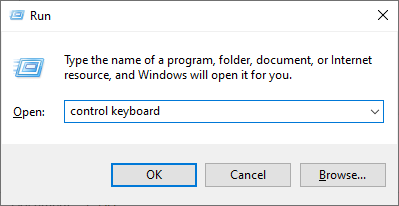
Windows 'Run' dialog box searching for 'control keyboard'
Keyboard properties window with repeat delay turned all the way to 'short'

Press ‘OK’ and there will now be no delay when holding down a key and you should find your productivity will increase.

Related Articles

Windows 10

Ultimate Windows 10 Setup & Personalisation Guide

Windows 10Windows 11

How To Find Full Network Path Of Mapped Drive

Windows 10

Disable Windows Startup Sound

Windows 10

How To Open Task Manager

Useful list of Windows 10 shortcuts Windows 10

Useful Windows 10 Shortcuts

Latest Posts

  • Complete List of iOS 26 Features & Changes
  • Bypass Radio Garden Block In The UK
  • How To Play OSRS In Fullscreen (RuneLite)
  • How To Export Your Amazon Orders To Excel
  • Automatically Post OSRS Notifications To Discord
  • How To Add Image Borders To Ivanti Knowledge Base Articles
  • How To Fix Fishing Bug in Palia
© 2026 Tony Perez | WordPress Theme Ultra Lite