In my role as a service desk analyst, we use ServiceNow to manage tickets. I like using any system as efficiently as possible, so I’ve spent a lot of time fine-tuning how I use it. These are the favourites, filters, and habits that save me the most time.
These steps were written for ServiceNow’s classic interface. In the newer Next Experience interface, favourites live in the Favorites menu at the top, but the filters work the same way.
1. Set up favourites and filters
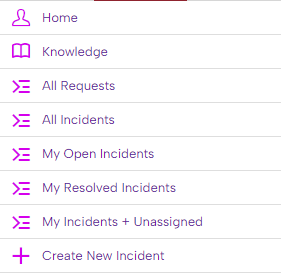
If you’re not using the Favourites pane on the left, you’re making the job harder than it needs to be. These are the favourites I have set up:
| Favourite | What I use it for |
|---|---|
| Home | Daily and weekly stats |
| All Incidents | Searching past fixes, and finding recent tickets |
| All Requests | Finding requests when users call about them |
| My Open Incidents and Unassigned | My main working view, used all day |
| My Resolved Incidents | Spotting replies on tickets I’ve closed |
| Create New Incident | Raising a ticket the moment a call starts |
To make a filtered list into a favourite, open All (All applications) on the left, go to Service Desk > Incidents, click the funnel icon to set your filters, then click Save.
Home
I use this to get back to the homepage, mainly to check daily and weekly resolved tickets and our team’s stats. (I’ve also used Stylus to hide the title in the top left corner, to keep things minimal. That’s purely personal.)
All Incidents
This shows every incident, including other analysts’. I use it for two things:
- Searching past fixes. Change the search drop-down to For text and search something like “Outlook credentials” to see how colleagues fixed the same problem before.
- Finding recent tickets. Sort Created newest first, to find a ticket a colleague mentioned, or to spot lots of people reporting the same problem on one day.
To add it, open All on the left and click the star next to Service Desk > Incidents.
All Requests
I don’t handle requests myself, as another team does, but people still call and chat about them. I usually find them with the global search, but if you handle requests, this one’s worth having.
My Open Incidents and Unassigned
This is the favourite I use the most, and I’d strongly recommend setting one up like it. You see updates on your own tickets, and new tickets as soon as they arrive, so you can triage them quickly and avoid breaching an SLA.
Sort the Updated column newest first. Any update from a resolver group or a user jumps to the top, and so do new tickets, which are easy to spot by their Pending state. Here are the filters (use your own name):

I used to click this favourite every 10 to 30 seconds. I then tried an auto-refresh extension, set to alert me when the word “Pending” appeared, but it refreshed the page while I was in a webchat. What finally solved it was the Activity Stream Flyout, below.
My Resolved Incidents
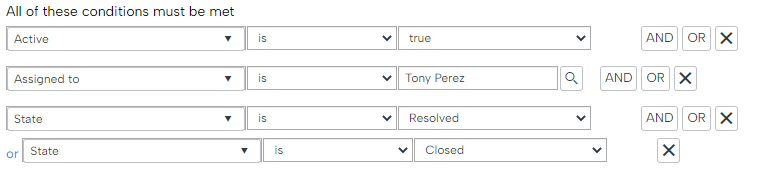
Handy when a user replies to a resolved ticket instead of reopening it. I click the favourite and look at Updated by. Every ticket shows my initials except the one they’ve replied to. Here are the filters:
Create New Incident
Lets you raise a ticket in one click when you pick up a call. Find Incidents > Create New in the full list and click the star.
Make them easy to spot
Click the pencil next to a favourite to rename it and change its icon and colour. I use a house for Home, a plus sign for Create New Incident, and a list icon for the rest. It saves your brain a little effort every time.
2. Handling calls and chats
When I answer a call, I take the person’s name and search it in ServiceNow’s global search while they explain. (Webchats give you the name already.) If they’ve already raised a ticket, I find it straight away, so they don’t have to read out a reference number, and we avoid duplicates.
For a new issue on the phone, I open Notepad and type what they’re saying as they say it. I type about as fast as people speak, so I often get it word for word, but the point is to capture the error messages, what they did, and what they’ve already tried. It’s saved me a lot of brainpower and made my tickets much more useful to colleagues.
For requests, it makes a great impression when someone starts with “I put in a request…” and you already have it open with the latest notes.
3. Use the Activity Stream Flyout
This changed how our whole team tracks tickets. The flyout follows whatever filters the list behind it is using. So, open it on your My Open Incidents and Unassigned list, and every update or new ticket appears in it the moment it happens. When I found this, the rest of the team started using it too, and it has really cut SLA breaches and triage times.
The only thing I didn’t like was that it covered the right-hand side of the list, where the latest update is. I moved and shrank it with the free Stylus extension for Chrome and Edge. This is the CSS I use:
.list_stream_reader {height:410px;top:483px!important;font-size:12px!important;right:942px!important;border:6px solid #5f219c;box-shadow: 1px 1px 5px 5px rgba(0,0,0,0.3)!important;visibility:visible!important}
.list_stream_reader iframe {margin:0!important}
.sn-card-component_headline{font-size:12px!important}
.list_stream_plank_header {height:20px!important;line-height:0px!important;background-color:#5f219c!important;color:#fff!important;top:20px!important;display:none}
.plank_close_button {background-color:#5f219c!important;color:#fff!important}
It moves the box to the bottom left and makes it half the size, enough to show two updates. Change 5f219c to any colour you like (it matches my custom ServiceNow theme), or remove the colour lines.
I use this alongside Outlook. First thing in the morning, I find it easier to work through emails, then I rely on the flyout for the rest of the day.
4. Choose your list columns
Click the cog in the top left of any list to choose its columns. I remove anything I don’t need, so all the important information fits on one screen. These are the ones I keep:

- Number: the incident number
- Opened: when it was raised
- Short description: the ticket title
- State: usually In Progress or Awaiting User Confirmation
- Caller and Email: who raised it
- Updated and Updated by: when it last changed, and who changed it
5. Use the keyboard
ServiceNow has few shortcuts of its own, but normal keyboard tricks save a lot of time over a day:
- Drop-down lists: click a list and type the first letters of the option. For a subcategory of MS Outlook, type M, or MS O if there are lots of M options.
- Impact and urgency: type the number instead of clicking.
- Posting notes: after typing work notes or comments, press Tab three times to reach Post, then press the space bar. No need to reach for the mouse.
- Global search: Ctrl + Alt + G jumps to the search bar in the classic interface.
Bonus: updating your tickets each morning
At the start of a shift, I open My Open Incidents and Unassigned and sort Updated oldest first. I update the top ticket, click the favourite again, and the next one is at the top. When every row shows today’s date, I’m done. You could go further and make a filter for tickets of yours that haven’t been updated in a day.
Not all of these will suit every team, so use the ones that fit how you work. I’ll keep adding to this as I find better ways to use ServiceNow.