I recently switched to 1Gbps Virgin Media broadband which comes with the Hub 5x router. I have over 20 smart devices in my house that were connected to my old internet and I wanted to avoid needing to go through each of them and update the password.
After changing my SSID to the old one, the other devices were still not able to connect as they are trying to authenticate using the old password. But when I tried to change the password to the old one, I was met with a ‘The password does not meet the requirements‘ error:
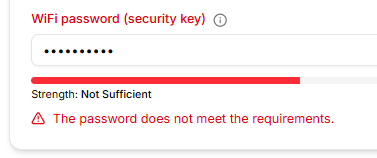
My old password is apparently too weak and does not meet the requirements. Here’s how to bypass it and set any WiFi password of your choice:
- Log in to the router at http://192.168.0.1 and go to Advanced Settings > Wireless > Security.
- Press F12 on your keyboard to open Developer Tools and click the Network tab. Tick Keep log (or Preserve log if using Chrome).
- In the password box, type any password that passes the rules and click Apply changes. I just added a 1 onto the end of its current password. You may need to forget the network in Windows and reconnect with this new password before proceeding.
- In the Network tab, a request called config appears the moment you click Apply (its method is PATCH). On mine it was the first one, with more info than the second one. Click it, and then click the Headers tab. Scroll to Request Headers and find the line starting Authorization:. It looks like ‘Bearer 9c48ad08eb …’. Copy that whole value (you’ll paste it into the code in the next step).
- Click the Console tab. Paste both blocks below, replacing ‘YOURTOKENHERE‘ with the token from step 4, and ‘YOURPASSWORDHERE‘ with the password you actually want. Press Enter after each.
fetch("https://192.168.0.1/rest/v1/wifi/band2g/config", {
  method: "PATCH",
  headers: { "Authorization": "Bearer YOURTOKENHERE", "Content-Type": "application/json" },
  body: JSON.stringify({ config: { ssid: { passphrase: "YOURPASSWORDHERE" } } })
}).then(r => console.log("2.4GHz:", r.status));
fetch("https://192.168.0.1/rest/v1/wifi/band5g/config", {
method: "PATCH",
headers: { "Authorization": "Bearer YOURTOKENHERE", "Content-Type": "application/json" },
body: JSON.stringify({ config: { ssid: { passphrase: "YOURPASSWORDHERE" } } })
}).then(r => console.log("5GHz:", r.status));Each line should log ‘204’ which means the router applied it. You should find that you are shortly disconnected from the internet (it may still show as connected but you’ll be unable to navigate to any webpages). At this point, forget the network in Windows, and connect to it again using your new custom password.
Notes
- Use the same password in both lines so devices roam between the 2.4GHz and 5GHz bands without any issues.
- Do all of the above in one logged-in session, as the token expires once you navigate away. A 401 code means you need to log back in and get a fresh token.
- A firmware update or factory reset is likely to bring the complexity rule back, so just repeat it with a fresh token if this happens.